Use Muninx with AI clients
The Muninx MCP server lets compatible AI clients interact with Muninx using your Muninx permissions. After setup, an AI client such as Codex can inspect tickets, create and update tickets, read and create ticket messages, search support history, draft replies, and query ticket analytics.
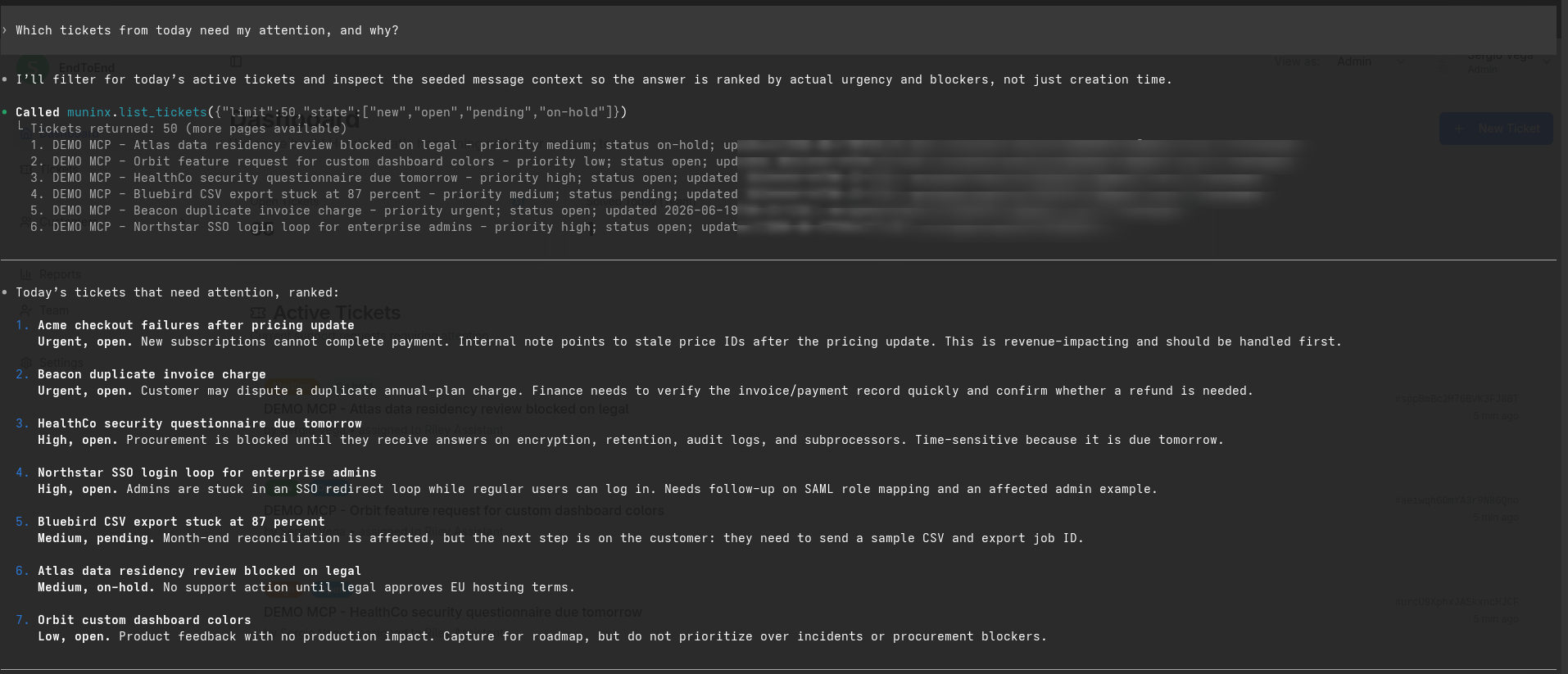
MCP access is scoped to the Muninx user who created the API token. Admins, agents, and customers may see different tickets or have different write permissions, including whether they can create tickets or post ticket messages.
How MCP differs from Muninx AI-assisted features
Section titled “How MCP differs from Muninx AI-assisted features”Muninx has built-in AI-assisted features inside the app for draft replies and response improvement. Those features are available only to admins and agents whose agent type is AI-assisted. Muninx pays the underlying AI usage cost for those in-app features as part of the AI-assisted agent subscription.
Muninx MCP is different. It is an integration interface for external AI clients, not the same thing as the in-app AI buttons. It lets you use Muninx through a flexible conversational workflow in a client such as Codex or Claude Code, including questions across tickets, support history, and analytics without opening the Muninx UI. Any authenticated Muninx user with a personal API token can connect an MCP-compatible client, subject to the records and actions their Muninx role allows.
With MCP, the external AI client handles AI model usage and billing. Muninx provides authenticated access to tickets, messages, search, and analytics; the person or organization using the external AI client is responsible for that AI client’s costs. This can lower your Muninx cost if you already use an external AI client and use a human agent, but it is not necessarily cheaper overall.
Prerequisites
Section titled “Prerequisites”Before connecting an AI client, you need:
- A Muninx account.
- A personal API token.
- An MCP-compatible client such as Codex.
If you prefer an OAuth-based setup through Smithery, see Use Muninx with Smithery.
If you want to use Muninx directly inside ChatGPT without configuring a local MCP client, see Use Muninx in ChatGPT.
Create an API token
Section titled “Create an API token”Muninx MCP requests use personal API tokens. To create one:
- Sign in to Muninx.
- Open Settings and select the API Tokens tab.
- Select Create token.
- Enter a descriptive name for the AI client or integration.
- Copy the token, store it securely, and select I have saved this token.
The raw token is shown only once. For more detail, including token revocation, see Authentication.
Connect Codex
Section titled “Connect Codex”Set your Muninx API token in an environment variable:
export MUNINX_API_TOKEN='muninx_pat:token-id:secret'Register the Muninx MCP server with Codex:
codex mcp add muninx \ --url https://api.muninx.com/mcp \ --bearer-token-env-var MUNINX_API_TOKENRestart your Codex session after setting the environment variable. Run /mcp in Codex to confirm that the muninx server and its tools are available.
If you prefer to manage MCP servers in configuration, use this equivalent entry in ~/.codex/config.toml, or in .codex/config.toml for a trusted project:
[mcp_servers.muninx]url = "https://api.muninx.com/mcp"bearer_token_env_var = "MUNINX_API_TOKEN"Connect Claude Code
Section titled “Connect Claude Code”Claude Code can connect to remote HTTP MCP servers with request headers. Set the same Muninx API token environment variable:
export MUNINX_API_TOKEN='muninx_pat:token-id:secret'Then add a Claude Code MCP configuration that sends the token as a bearer token:
{ "mcpServers": { "muninx": { "type": "http", "url": "https://api.muninx.com/mcp", "headers": { "Authorization": "Bearer ${MUNINX_API_TOKEN}" } } }}Use this JSON in a Claude Code MCP configuration file such as .mcp.json, or adapt it for your preferred Claude Code configuration scope. Restart Claude Code after setting the environment variable, then run /mcp to confirm that the muninx server is connected.
Claude app custom connectors, Claude Desktop, and Team or Enterprise connector settings may expose different setup flows. Use the Muninx MCP URL https://api.muninx.com/mcp and configure authentication as Authorization: Bearer <your Muninx API token> when the client supports custom headers or bearer-token authentication.
What AI clients can do
Section titled “What AI clients can do”Connected AI clients can use the Muninx MCP server to:
- List, inspect, create, and update tickets.
- Read and create ticket messages.
- Search visible ticket content.
- Query ticket analytics.
The AI client still operates through Muninx permissions. MCP requests use the API token owner’s tenant and role. Customers do not see internal notes, and role-specific ticket access rules still apply.
Example prompts
Section titled “Example prompts”Use natural language prompts that match the support workflow you want help with:
- “Which tickets created today need my attention first?”
- “Summarize today’s support workload by priority.”
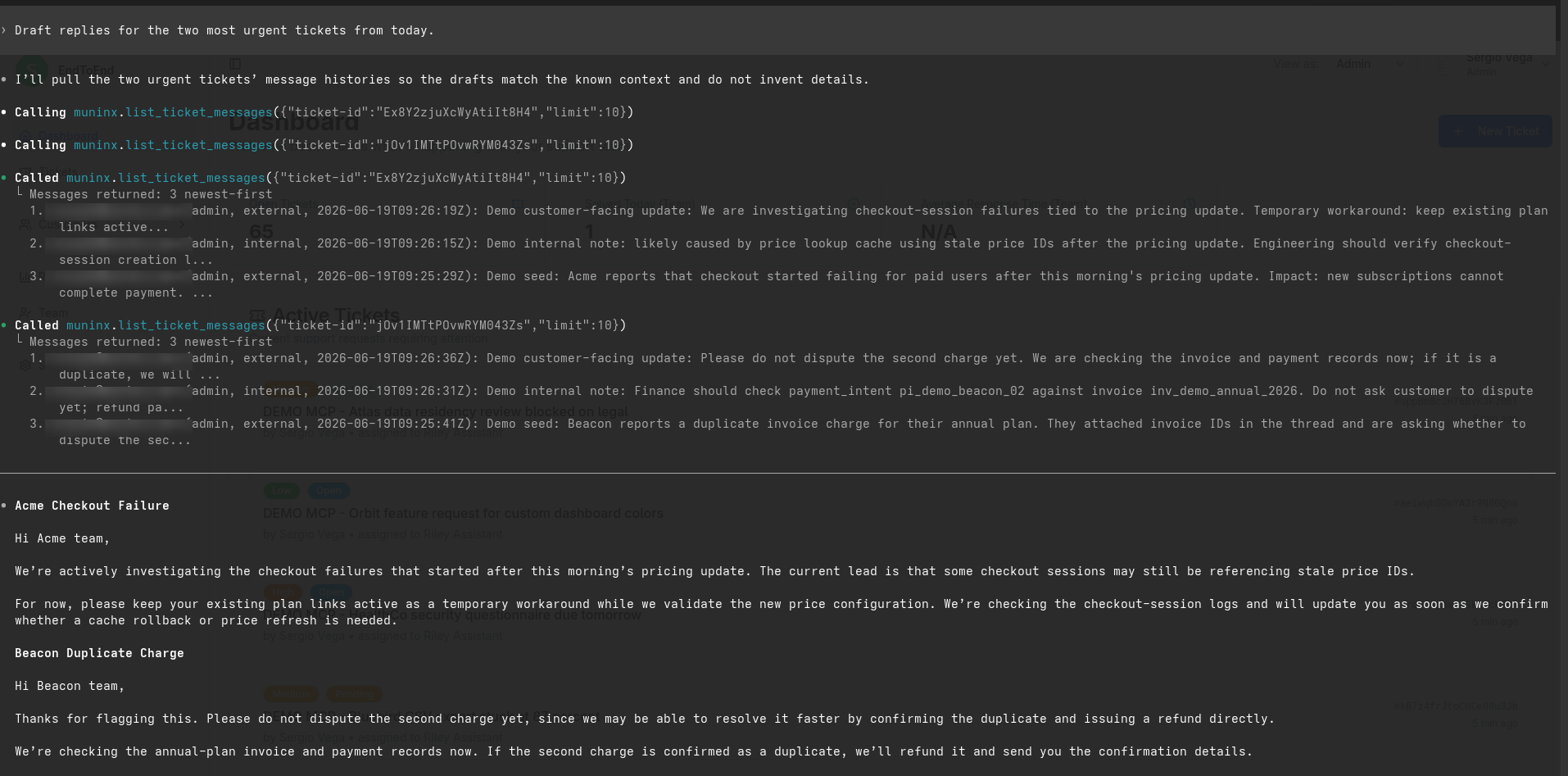
- “Draft replies for the two most urgent tickets from today.”
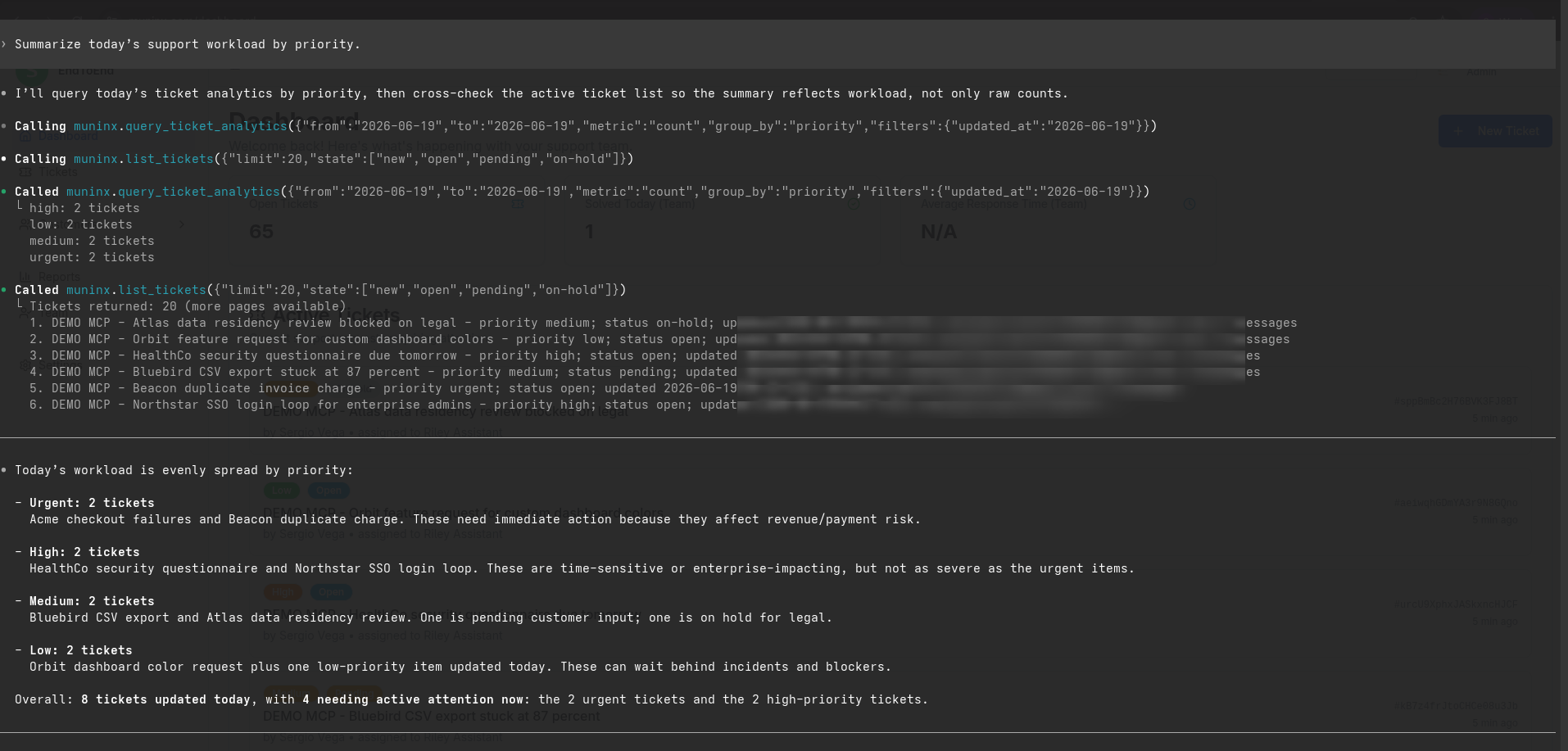
When asking for drafts, review the response before sending it to a customer.
Keep tokens secure
Section titled “Keep tokens secure”Store your Muninx API token in an environment variable. Do not paste tokens into prompts, chat messages, screenshots, or configuration files committed to source control.
If a token may have been exposed, delete it from Settings > API Tokens and create a replacement.