Use Muninx in ChatGPT
The Muninx ChatGPT plugin lets ChatGPT work with Muninx support data through Muninx MCP-backed capabilities. After connecting the plugin, you can ask ChatGPT to inspect tickets, draft replies, search support history, and review ticket analytics using your Muninx permissions.
How this differs from direct MCP setup
Section titled “How this differs from direct MCP setup”The ChatGPT plugin is the easiest setup path when you want to use Muninx inside ChatGPT. You connect from ChatGPT and do not need to configure a local MCP client or store a Muninx API token in local client settings.
Use direct Muninx MCP setup instead if you want to connect Muninx to Codex, Claude Code, or another MCP-compatible client with a personal API token.
How this differs from AI-assisted replies in Muninx
Section titled “How this differs from AI-assisted replies in Muninx”AI-assisted replies are focused tools inside the Muninx ticket workflow: they draft or improve the reply for the ticket you are working on. They are available only to AI-assisted admins and agents, and their AI usage is included with the AI-assisted agent subscription.
The ChatGPT plugin is an external-AI option. It gives you a conversational workspace where you can ask questions across tickets, support history, and analytics without opening the Muninx UI. It uses your connected ChatGPT account and still follows the connected Muninx user’s permissions. This can lower your Muninx cost if you already pay for ChatGPT and use a human agent, but ChatGPT’s own subscription or usage costs still apply.
Use AI-assisted replies when you want in-ticket drafting and improvement. Use ChatGPT when you prefer to work with Muninx through ChatGPT’s broader conversational workflow.
Prerequisites
Section titled “Prerequisites”Before connecting Muninx in ChatGPT, you need:
- A Muninx account.
- A ChatGPT account with access to plugins.
- Access to the Muninx workspace and tickets you want ChatGPT to use.
- Workspace admin approval for ChatGPT plugins, if your ChatGPT workspace requires it.
Muninx permissions still apply after connection. ChatGPT can only access Muninx records and actions allowed for the connected Muninx user.
Connect Muninx in ChatGPT
Section titled “Connect Muninx in ChatGPT”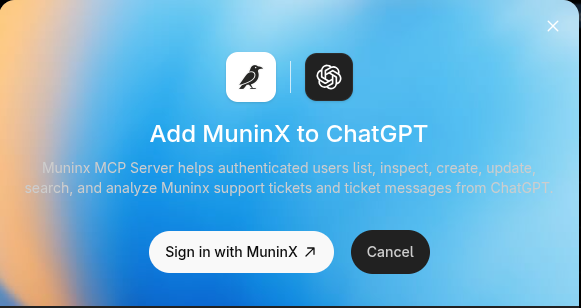
To connect Muninx:
- Open the Muninx ChatGPT plugin.
- Select Connect.
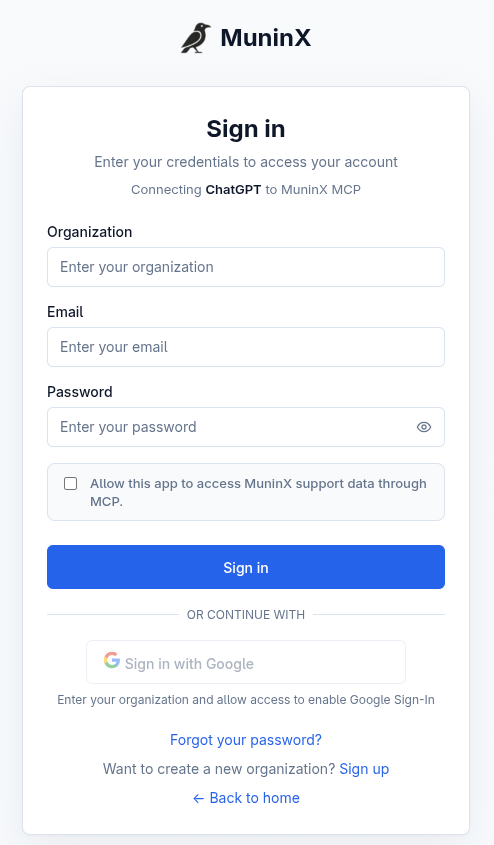
- Complete the Muninx login or authorization flow if prompted.
- Return to ChatGPT.
- Ask a Muninx-related question.
During authorization, Muninx may ask you to sign in and allow ChatGPT to access Muninx support data through MCP.
If you use ChatGPT Business, Enterprise, or Edu and the Connect button is unavailable, your workspace may require an admin or owner to enable the plugin first.
What ChatGPT can do with Muninx
Section titled “What ChatGPT can do with Muninx”After connection, ChatGPT can use Muninx to:
- List, inspect, create, and update tickets.
- Read and create ticket messages.
- Search visible ticket content.
- Query ticket analytics.
- Draft replies for review before sending.
The plugin operates through the permissions of the connected Muninx user. Admins, agents, and customers may see different tickets or have different write permissions.
Example prompts
Section titled “Example prompts”Use natural language prompts that match the support workflow you want help with:
- “Which Muninx tickets need my attention today?”
- “Summarize open high-priority tickets.”
- “Draft a reply for the most urgent customer ticket.”
- “Show ticket workload by priority for this week.”
Review any drafted customer response before sending it.
Permissions and privacy
Section titled “Permissions and privacy”Muninx role permissions apply to ChatGPT plugin access. The plugin can only access records and actions allowed for the connected Muninx user. Customers do not see internal notes, and role-specific ticket access rules still apply.
For privacy-sensitive questions, distinguish Muninx application data from ChatGPT plugin usage. See Privacy and data handling for Muninx data handling notes.
Disconnect or troubleshoot
Section titled “Disconnect or troubleshoot”To disconnect the plugin, open ChatGPT plugin settings and remove the Muninx app connection.
If you cannot connect Muninx, check whether apps are available for your ChatGPT account and whether your workspace admin has enabled the Muninx app. For Muninx-side issues, see Troubleshooting or Support contact.