Assign and route tickets
Open a ticket and go to Ticket Properties. Assignee is the person or AI agent handling it. Team is the group it is routed to.
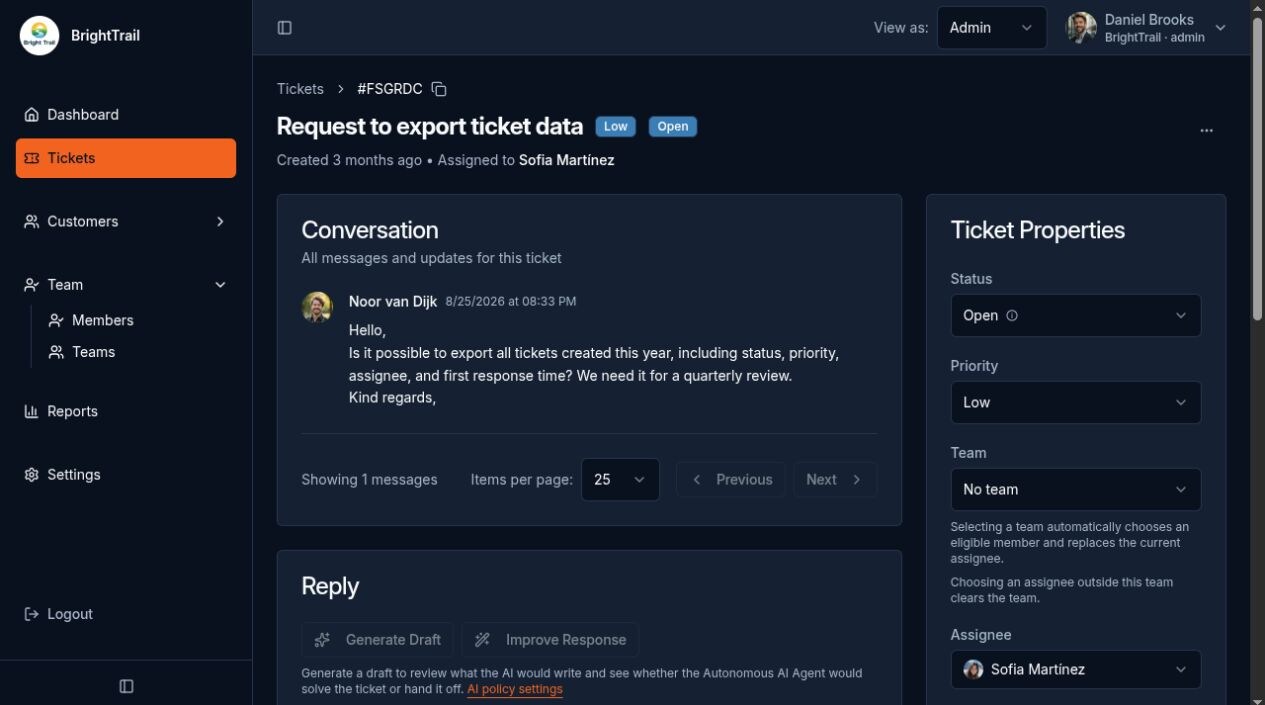
Admins can also set up automatic routing for new tickets.
Assign a person
Section titled “Assign a person”Open Assignee and select the person who should own the next action. If you select a person outside the ticket’s current team, Muninx clears the team.
Route to a team
Section titled “Route to a team”Admins can select a team from Team. For example, send a login issue to Product Support. Muninx replaces the current individual assignee and chooses an eligible team member based on workload. Eligible staff are active admins or agents on the team who accept automatic assignments.
If nobody qualifies, the ticket stays with the team and shows Unassigned. Assign someone manually or check that the team has an active member eligible for automatic assignments. To check a member’s setting, go to Team > Members, open the member, and select Edit Member. Turn on Automatically assign tickets and save if they should receive routed tickets. Return to the ticket and select Automatically reassign to run the selection again.
Choose No team to clear the team and keep the individual assignee.
To find a group’s work, use Team filter in the admin ticket queue or open the team and select View all team tickets.
Assign to the AI agent
Section titled “Assign to the AI agent”If your workspace has the Autonomous AI Agent add-on, admins can assign a ticket to AI.