Route new tickets automatically
Use ticket routing to assign new tickets based on their subject and opening message. You need admin access to configure it.
Set up routing
Section titled “Set up routing”- Open Settings > Ticket routing.
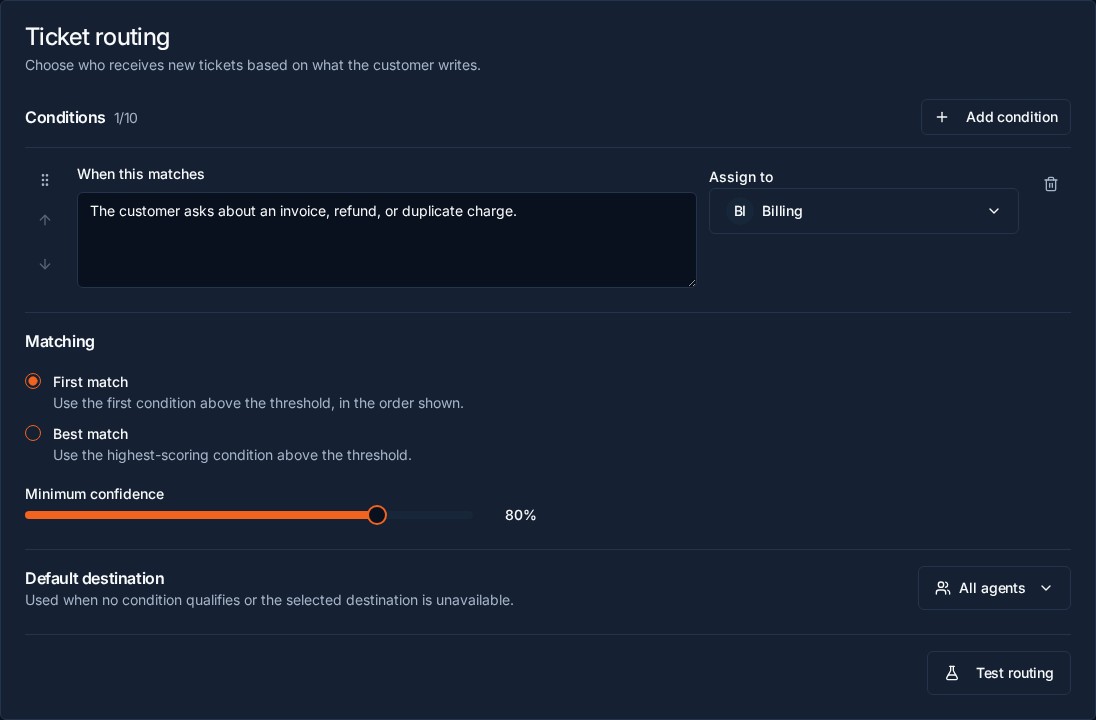
- Select Add condition. Under When this matches, describe one kind of request. For example, “The customer asks about an invoice, refund, or duplicate charge.”
- Under Assign to, choose the destination. You can add up to 10 conditions. Use the move arrows or drag handle to change their order.
- Choose a Matching mode and set Minimum confidence. Then choose a Default destination.
- Use Test routing to check your draft. Select Save changes when you’re ready to apply it to new tickets.
Choose a destination
Section titled “Choose a destination”| Destination | How Muninx assigns the ticket |
|---|---|
| Users | Assigns the ticket to the selected active admin or agent if they have automatic assignment enabled. |
| Teams | Assigns the ticket to the team and its eligible member with the fewest open and pending tickets combined. |
| AI assistant | Assigns the ticket to your AI agent. This destination requires the Autonomous AI Agent add-on. |
| All agents | Chooses the eligible admin or agent across your help desk with the fewest open and pending tickets combined. |
To check eligibility, open Team > Members, open the member, and select Edit Member. The Automatically assign tickets switch controls whether that member can receive automatic assignments. For teams, check that at least one member is active and has the switch on. See Create teams and manage members.
Decide which condition wins
Section titled “Decide which condition wins”- First match checks conditions in the order shown and uses the first one whose score is above Minimum confidence. Put a specific rule above a broader rule when both could apply.
- Best match uses the highest-scoring condition above Minimum confidence. If two scores tie, the earlier condition wins.
New routing settings start with First match and 80% minimum confidence. The score estimates how well a condition applies. Try representative tickets before adjusting the threshold, including tickets you want to fall back to the default.
Set a default destination
Section titled “Set a default destination”Muninx uses the default when no condition clears the threshold, it cannot evaluate the conditions, or the matched destination is unavailable. For example, a team with no eligible members sends the ticket to the default. You can select any routing destination or choose Leave unassigned. If your default is unavailable, the ticket stays New and Unassigned.
All agents is the starting default. With zero conditions, Muninx uses your selected default for every new ticket.
Test a routing change
Section titled “Test a routing change”- Select Test routing and choose an existing ticket. Use Filter loaded tickets to narrow the list, and Load more tickets to find older tickets.
- Select Run test. The preview shows the proposed team or assignee, the matched condition and its score when available, and why the default was used. For a team, expand the member list to check who can receive the ticket.
- Test another ticket or close the preview. Select Save changes to apply your draft, or Discard changes to restore the saved settings.
The preview uses your current draft, even before you save. It reads the existing ticket’s subject and opening message and uses current assignment eligibility and workload. The preview itself leaves the ticket and saved settings untouched.
Muninx uses OpenAI to evaluate routing conditions during ticket creation and previews. See Privacy and data handling.