Assign a ticket to AI and take over
An admin can assign a ticket to the workspace’s AI agent after enabling the Business add-on. New tickets still follow the normal staff assignment process.
- Open a ticket with an unanswered customer message. Reopen it first if it is Solved. Closed tickets are read-only.
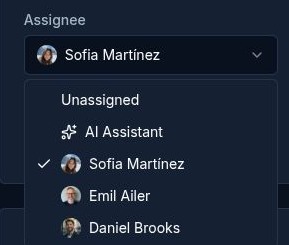
- In Ticket Properties > Assignee, select the AI agent’s configured display name.
- Check the conversation, status, and assignee for the result.
| Outcome | What appears on the ticket |
|---|---|
| AI replies and waits | A public reply and Pending status |
| AI resolves the request | A public reply and Solved status |
| AI hands off | A staff-only note with the reason. Muninx uses its normal assignment rules. The ticket becomes Open if an eligible staff member is assigned, or New and unassigned if nobody qualifies. The handoff itself sends no public reply. |
When AI evaluates a ticket
Section titled “When AI evaluates a ticket”Assigning a New, Open, Pending, or On hold ticket to AI starts an evaluation. The latest eligible public message must be from the customer. For example, a public staff reply saying “We’re looking into it” leaves AI with nothing to answer. The same words in an internal note leave the customer’s message unanswered.
A public customer follow-up from the portal or email can trigger another evaluation if AI still owns the ticket and the reply puts or keeps it in Open. Staff replies and internal notes do not trigger another turn.
Why AI did not reply
Section titled “Why AI did not reply”Check that the add-on is Enabled, the AI agent is still the assignee, and the ticket meets the eligibility rules. If there is no unanswered customer message, AI skips the ticket without adding a reply or a handoff note. If the customer’s email is missing, check how Muninx handles incoming replies.
Why AI hands off
Section titled “Why AI hands off”Check the internal note for the reason. AI can hand off when the saved policy requires staff attention, when its confidence falls below your configured minimum, or when it repeatedly fails to process the ticket.
Two reply limits can also trigger a handoff before AI sends another reply:
| Next customer message | When AI hands off |
|---|---|
| The ticket already has 3 public AI replies in the last 5 minutes. Replies sent in response to either email or portal messages count. | |
| Email or portal | The ticket already has 9 public AI replies since the last public staff reply. If staff have never replied publicly, the count starts at the beginning of the ticket. |
A public staff reply resets the 9-reply count. The 5-minute count follows the rolling time window.
Take over a ticket
Section titled “Take over a ticket”Change Assignee to a staff member to stop autonomous handling on that ticket. If a handoff left it unassigned, choose a person or route it to a team. Read the handoff note before replying.
AI is missing from the assignee picker
Section titled “AI is missing from the assignee picker”Check that you’re using an admin role, the add-on is Enabled, and the ticket is open for updates. Reopen a Solved ticket before assigning it. To check the policy before assigning work, preview it on a test ticket.